 MockRayGPS
// LOCATION SIMULATION FOR iOS
Simulate location
right on your iPhone
A GPS location simulation tool for developers and testers. Teleport, move along roads, run multi-stop routes, or replay GPX. Every app sees the location you set, with no computer, cable, or extra hardware.
iOS 27+ · iPadOS 27+ · No computer required
- TARGET
- Taipei 101
- LAT
- 25.039222
- LON
- 121.546433
- MODE
- Along roads · Jog
- LINK
- ● Wi‑Fi connected
> Every app sees this location_
// 01 SCREENS
// 02 FEATURES
What you can do
From a single spot to a whole route, the common location testing scenarios are all here.
Teleport
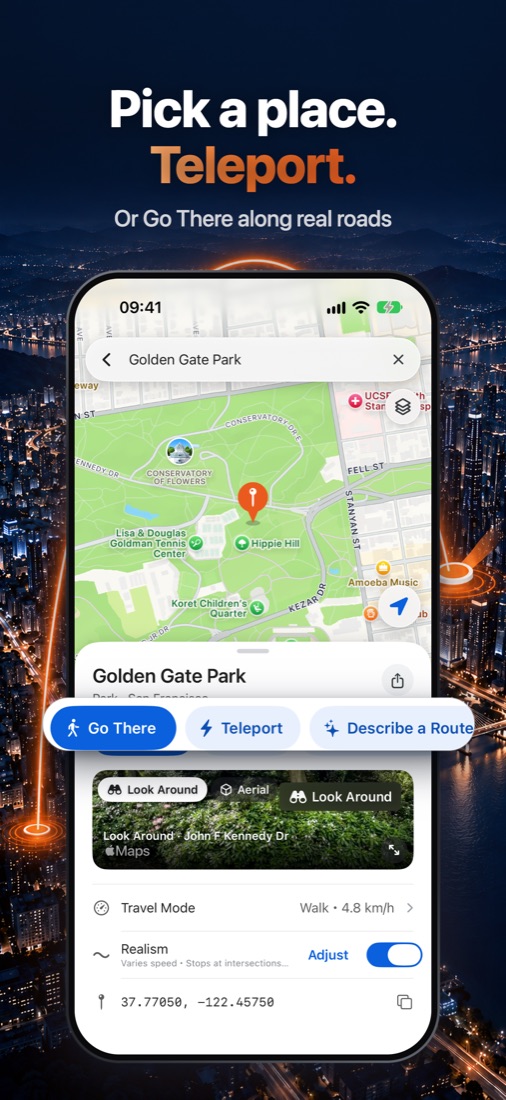
Search for a place, address, or coordinates, or tap the map, and jump there instantly. You can also paste Google Maps or Apple Maps links.
Go There
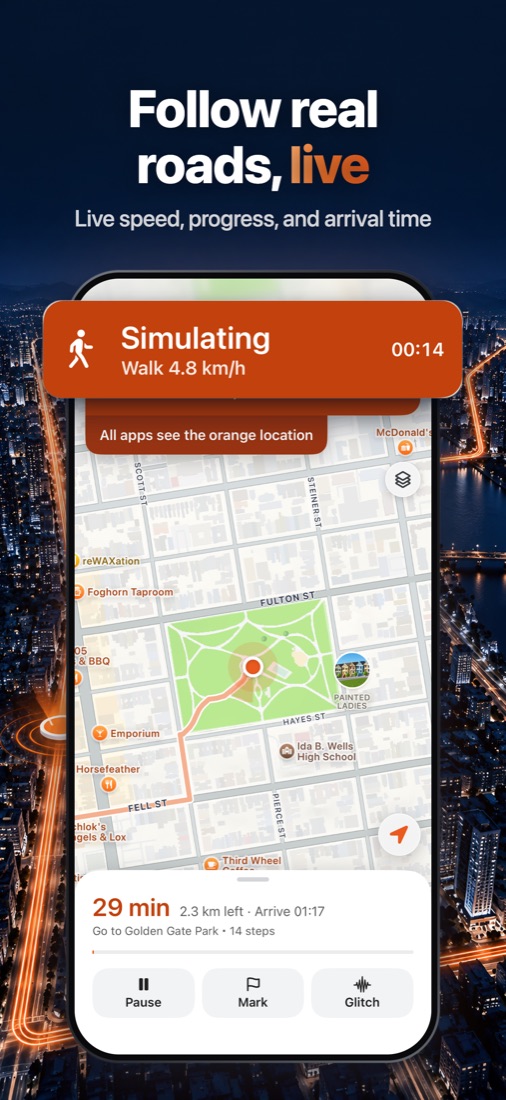
Move to a destination along roads on foot, jogging, running, by bike, by car, or at a custom speed. Pause or hold in place anytime.
Describe a Route
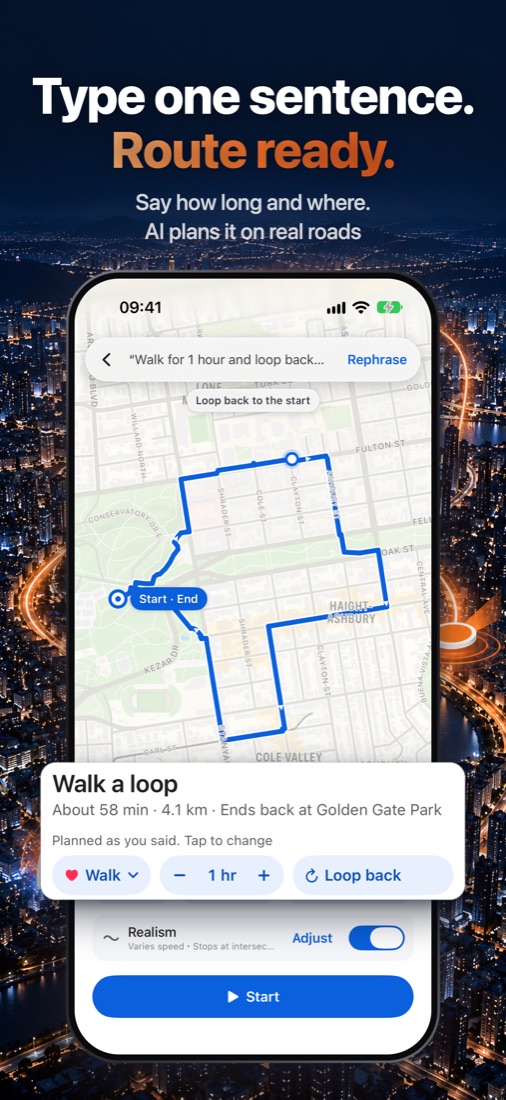
On supported devices, type something like “a 30-minute jog to Oracle Park” and AI plans the route for you.
Routes and loops
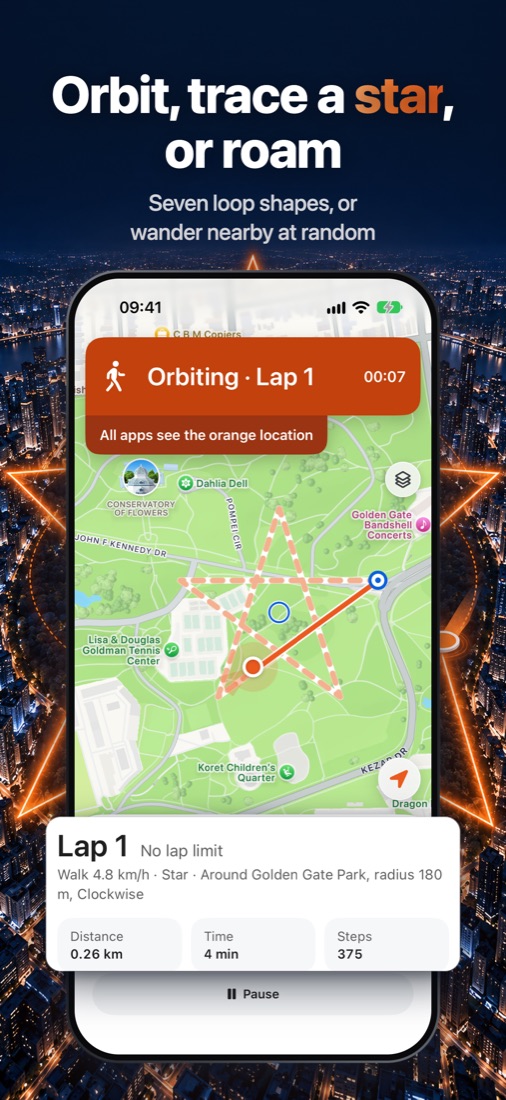
Connect stops into a route, circle around a spot, or wander at random. Save to My Routes and run again anytime.
GPX import and replay
Choose a GPX file or paste its content. Replay using timestamps or your motion settings, then loop or go back and forth.
Record real routes
Record the path you actually take, even in the background, then replay it or export it as GPX.
Joystick and Hold
Steer in real time with the joystick, or stay at one spot with slight drift so it looks natural.
Testing tools
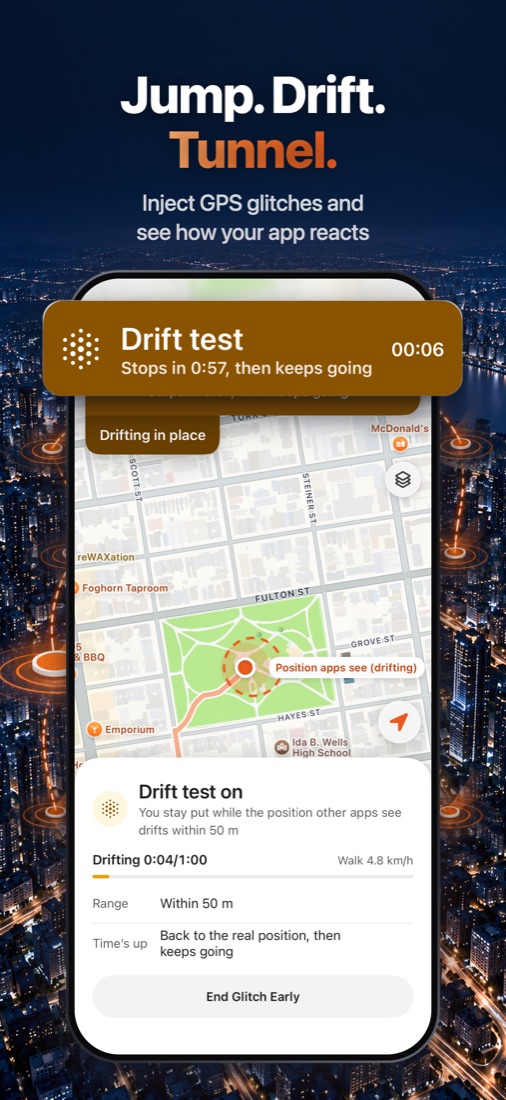
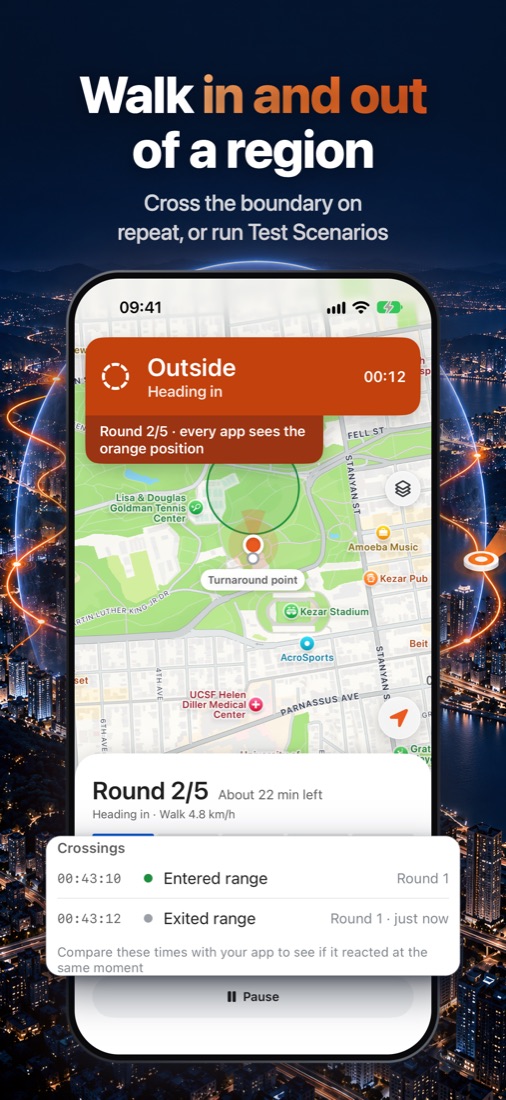
Geofence tests, location glitches, markers along the way, and test scenarios. Export the log for your team.
Realism
Speed variation, slowing at turns, GPS drift, and rest breaks make movement feel human.
Saved places and history
Star frequent test spots and organize them into lists. Every simulation is saved so you can run it again with one tap.
Steps in the Health app
Optionally convert simulated distance into steps written to the Health app on this device.
Live Activities
See time and distance left on the Lock Screen and in the Dynamic Island, and pause or end right there.
// 03 SETUP
Get started
Requires iOS 27 or later with Developer Mode turned on. The first time you open the app, the setup guide walks you through these four steps. You only do this once.
[1/4]
Turn on Developer Mode
Go to Settings › Privacy & Security › Developer Mode, turn it on, restart when asked, then tap Turn On to confirm.
[2/4]
Enter the pairing code
Allow finding devices on local networks, then go to Settings › Privacy & Security › Developer Mode › Pair with Host, choose MockRayGPS, and enter the code shown in the app. The code is also sent as a notification.
[3/4]
Prepare location components
First-time setup needs a network connection and takes about 10 seconds. Connect to Wi‑Fi first.
[4/4]
Connection test
Confirms your location can be changed, then restores it automatically.
WARNDon't see Developer Mode at all? iOS hides it until development features have been used on the iPhone. Search the web for how to enable Developer Mode on iPhone, then come back.
// 04 PLANS
Free and Pro
The core features are free. If you test often, Pro removes ads and unlocks everything.
PLAN.FREE
Free
- Teleport, Go There, multi-stop routes
- GPX import, route recording, joystick
- Saved places, lists, and sharing
- Shows ads
PLAN.PRO
MockRayGPS Pro
- No ads
- Full routes, GPX replay, and history features
- Custom realism settings and rest breaks
- Monthly and yearly plans with the same features; prices shown in the App Store
Subscriptions renew automatically until canceled in iOS Settings › Apple Account › Subscriptions; deleting the app does not cancel. Your routes, saved places, and history stay after a subscription ends.
// 05 FAQ
FAQ
Why do I need Developer Mode?
Changing your location relies on an iOS feature intended for developer testing, which is only available with Developer Mode on. You can turn it off anytime in Settings › Privacy & Security › Developer Mode.
Why do I need Wi‑Fi?
On Wi‑Fi, MockRayGPS connects directly; stay on that Wi‑Fi while simulating.
No Wi‑Fi, or this Wi‑Fi can't connect directly?
Get the free LocalDevVPN app from the App Store, open it and tap Connect, then come back to MockRayGPS and simulate as usual. LocalDevVPN is made by another developer, and you can turn it off when you're not using it.
Does simulation stop when I switch apps?
No. It keeps running in the background with the location indicator at the top of the screen, and progress shows on the Lock Screen and in the Dynamic Island. To finish, return to MockRayGPS and tap Restore Location.
Location is off after restoring?
Your iPhone needs to find its real location again, which can take tens of seconds. Turning on Wi‑Fi and being outdoors helps.
It says it needs to reconnect?
Go to the Settings tab, tap Fix, and follow the steps. Connecting to Wi‑Fi (or turning on LocalDevVPN) and restarting once usually fixes it.
How do I share a place or route with teammates?
Choose GPX from Share on a place, list, or route and send it by Messages, Mail, or AirDrop. Opening it in MockRayGPS imports it.
Where is my data stored?
Routes, saved places, history, and settings stay on this device, with no account required. See the Privacy Policy.
Subscribed, but the app still shows Free?
Make sure you're signed in with the Apple Account you used to buy, then tap Restore Purchases in the Settings tab.
// 06 CONTACT
Contact
Send a report from Settings › Report a Problem in the app; a diagnostic report is attached automatically (version, device model, and connection status, without location, routes, or health data). Or email me directly.
$mailsupport@mockraygps.com_MockRayGPS is a development and testing tool. Use it only for purposes you are authorized to carry out. See the Terms of Use.